
Music-covered dialogue
How to Reduce Background Music in a Video
A practical guide to reducing music in an existing video while protecting spoken dialogue.
Preserve the dialogue
Before testing music reduction
- Keep the original video and look for any separate dialogue or music tracks.
- A mixed soundtrack needs a file-specific trial; music removal can also change speech.
- Judge the words you can hear, rather than aiming for a silent background.
Can you remove background music without losing speech?
To reduce background music while keeping spoken dialogue, first look for an editable music track in the original video project. If music and speech exist only as one mixed soundtrack, a speech-and-music separation tool can estimate a cleaner dialogue track, but complete removal without changing the voice is not guaranteed.
The useful goal is understandable speech with acceptable remaining music. A silent background is a poor trade if the process also removes quiet words or changes the speaker’s voice.

Check whether the video still has a separate music track
If the original video project has music on its own track, lower or mute that track while leaving the dialogue track unchanged. This avoids asking a separation tool to estimate which sounds belong to the music.
Look for the editing project and its linked source recordings, rather than only the final exported video. An editor may also have an earlier export made before music was added. Keep those files alongside the finished version so you can check that the same dialogue and edits are present.
Detaching audio from a video does not, by itself, separate music from speech. It makes the existing soundtrack editable as audio; a soundtrack containing both sounds is still a mixture. Left and right stereo channels are also not automatically independent music and dialogue tracks.
Can source separation reduce music in a finished video?
Source separation can attempt to reduce background music in a finished video by estimating speech and music as different audio components. The estimated speech output can still contain music, and the processing can affect the speech you want to keep.
Some separation tools provide adjustable component levels or separate output tracks. Those outputs are often called stems: estimated components extracted from the mixture, rather than the untouched original recording tracks. The names describe the estimated contents, not a guarantee that each output contains only that sound.
Which music-removal feature should you choose for a saved video?
Choose a feature that accepts an existing mixed file and explicitly separates speech from music. Confirm that the tool can export the speech you want to keep; muting the whole soundtrack removes dialogue as well as music.
Check the input and output options before processing a long video. A tool may return a video, a separate speech file, or several estimated audio components. Choose an output you can use in your editor, and verify the downloaded result rather than relying only on the preview.
Why song vocals can remain with the spoken dialogue
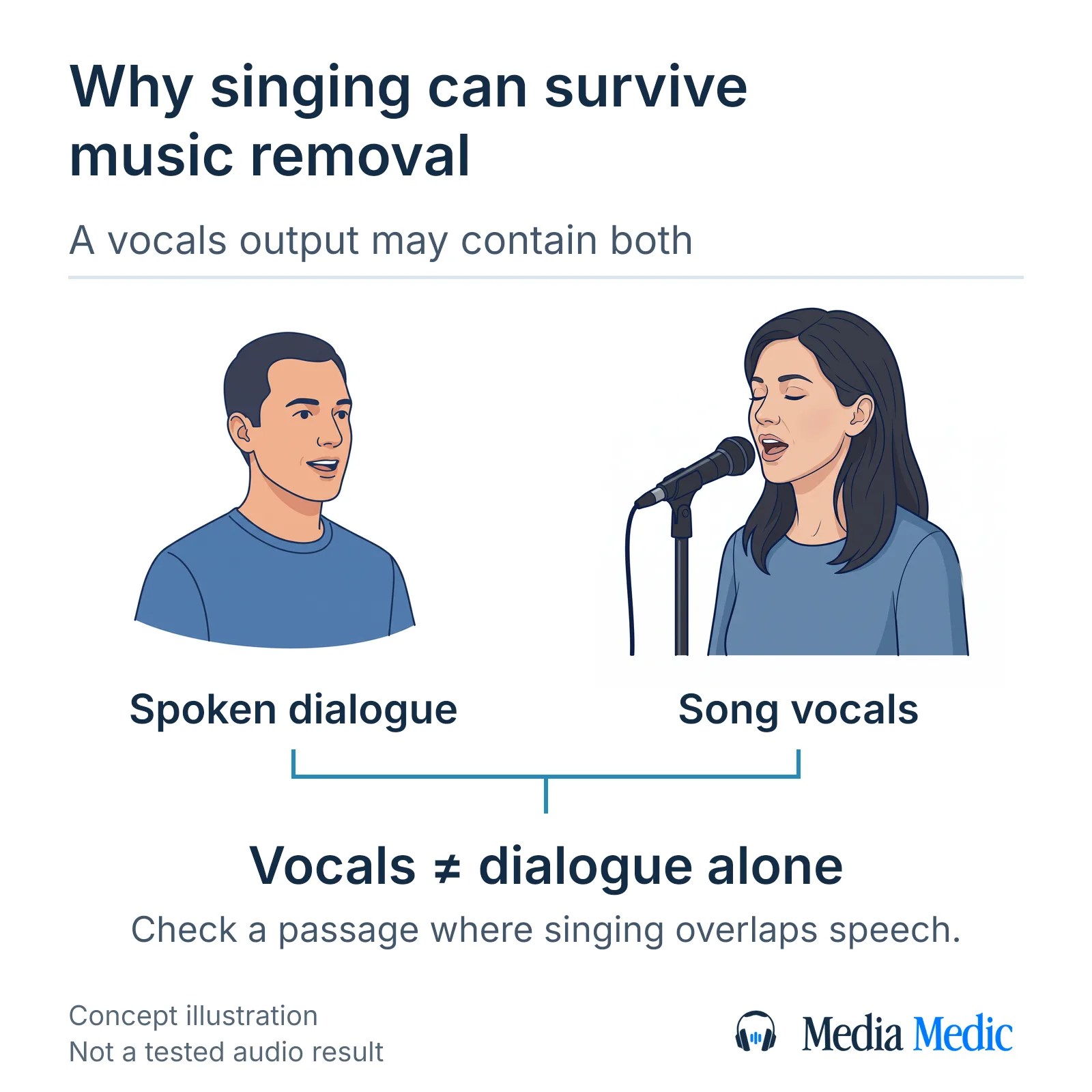
A vocal-versus-instrumental separator can keep a song’s singing alongside the spoken dialogue because both contain voices. A vocals output therefore does not necessarily mean dialogue alone.
Wanted speech means the spoken dialogue you need to hear; wanted speaker means the person speaking. A tool that separates vocals from instruments does not thereby select that person from every other voice in the recording.
Include a passage where singing overlaps the dialogue in any trial. Check whether the song lyrics remain and whether the spoken syllables survive. Selecting one person among competing voices is a separate task that needs its own assessment; it cannot be assumed from a music-removal label.
Why ordinary noise reduction may damage speech under music
Conventional noise-profile reduction is designed for relatively steady unwanted sound, so a changing music track is a poor match for that method. Increasing reduction can damage speech without removing the whole soundtrack.
A noise profile is a sample of the unwanted sound used to guide processing. Music changes in notes, rhythm and loudness; a music-only pause does not establish a reliable removal profile for every passage with speech. Do not include the spoken dialogue you want to keep in a noise sample.
If a noise-reduction tool offers a removed-sound preview, listen for recognizable speech in it. Back off or undo processing that discards the dialogue. Treat that preview as a warning aid, then judge the retained voice as well.
Why removing the stereo center can remove the voice
Removing sound shared by the left and right stereo channels can remove centered dialogue along with centered music. Stereo-center cancellation selects a relationship between channels, rather than recognizing which sound you want.
A stereo recording contains left and right channels. Sound common to both can sit in the perceived center; spoken dialogue, singing and instruments can all occupy that position. A mono recording has one audio channel. Duplicating that channel into left and right does not provide the independent stereo information these methods need.
Avoid applying a “remove vocals” or center-removal setting blindly when spoken dialogue is the material to preserve. Compare a working copy with the original, and undo a result that weakens the voice even if some music disappears.
How to test music reduction while preserving spoken dialogue
Test music reduction on a short working copy containing difficult dialogue before processing the whole video. Use a feature intended to separate speech from music, and keep the original file unchanged.
- Save the original video separately. Make a working copy and identify any earlier processing, so a new attempt does not silently replace the source.
- Choose a passage with a complete sentence, quieter syllables and music overlapping the voice. Include a music change or singing if those occur in the recording; an easy pause alone is not a representative test.
- Record the excerpt’s start position in the original video. Before using an online processor, confirm that you are authorized to share the recording and that the service’s current terms fit the material. Import the working copy into the chosen tool. Check whether its selected output keeps speech: “remove vocals” can mean the opposite of the result you need.
- Preview a modest reduction if the tool provides an amount control. Listen through the complete sentence. Reduce the effect or stop if word beginnings, endings or quiet syllables disappear.
- Save the candidate under a new filename with a note of the tool and settings. Keep a less aggressive version if extra suppression makes the dialogue harder to follow.
How to judge speech after music reduction
Judge music reduction by whether the spoken dialogue is easier to follow and retains its useful detail. Compare the same sentence in the original and processed versions at similar comfortable playback levels.
Listen for complete consonants, quiet replies, sentence endings and a consistent voice. Also notice new watery or metallic textures, abrupt changes in background sound, and fragments of music that now distract more than the original accompaniment.
Some residual music may be a better compromise than damaged speech. Keep unclear words unresolved: a smoother voice or an automatic transcript does not establish a word you still cannot hear. If the comparison becomes a repeated guessing exercise, pause processing and request a file-specific assessment.
How to return the cleaned speech to the video
If a separation tool returns only audio, align the processed speech with its original position in a duplicate video project. A full-length output belongs at the original soundtrack’s start; a processed excerpt belongs at the excerpt’s original timeline position.
Disable the old mixed soundtrack in the replaced region for the listening comparison so it does not play music underneath the new speech track.
Keep the audio’s timing unchanged unless you intend and document an edit. Check alignment with visible speech or another clear event near the beginning, middle and end; matching the first syllable alone does not verify the full video.
Export a new video and open that saved file. Check the dialogue, picture synchronization, beginning and ending, and any transitions into processed sections. Keep the original video and project available if the export has missing audio, unintended cuts or a timing mismatch.
When to request a review of music-covered speech
Request a file-specific review when music still obscures important dialogue or your attempts make the voice less useful. A review can assess what improvement may be practical in that recording; it cannot promise a music-free result with every word intact.
Prepare the original video if available, timestamps for the difficult passages, and any separate dialogue track or earlier version without music. Describe the speech you need to follow and the intended use. Identify previous processing and say whether the returned file needs to fit an existing video edit.
Media Medic offers a free file review; restoration is paid work. Use the review to discuss the recording and proposed scope before commissioning cleanup.
What this music-removal guide has not tested
This music-removal guide explains documented processing distinctions and a source-preserving comparison workflow. No recording was processed for the article, so it supplies no measured improvement, before-and-after example or universal settings.
Actual results, software access and export compatibility remain file- and tool-specific. The guide does not establish that reducing music clears rights to publish a video or that processed speech proves an uncertain word. It addresses an existing saved recording, rather than recording a replacement voice or changing live playback.
The technical references describe mixed-file separation, conventional noise reduction, stereo-center processing and music-source categories. They document methods and limits; they do not certify a result for your video.
Technical references for music and speech separation
- Adobe Podcast: remove music from audio or video https://podcast.adobe.com/en/remove-music-from-audio-or-video-with-adobe-podcast
- Audacity: Noise Reduction https://manual.audacityteam.org/man/noise_reduction.html
- Audacity: Vocal Reduction and Isolation (legacy effect; not bundled from version 3.5.0) https://manual.audacityteam.org/man/vocal_reduction_and_isolation.html
- Demucs: archived original music-source separation repository https://github.com/facebookresearch/demucs