
Recording guide
Production audio cleanup
Prepare existing dialogue tracks, agree how they will return, and check the repaired recording in its original context.
The short answer
Key takeaways
- Keep original recordings, separate microphone tracks and an identifiable edit reference. A mixed soundtrack gives the next editor fewer independent elements to adjust.
- Confirm the exchange format, track layout, timing and processing before export. An AAF can carry useful timeline information, but support depends on the applications and settings.
- Handles provide audio beyond an edit boundary. Agree their length rather than treating one example as a standard for every project.
- Compare the returned voice against its source and the surrounding scene. Documentary production also needs a clear distinction between recorded sound and material added later.
A useful cleanup handoff starts with the best available source, the passages that need attention, and a clear description of the return files. Keep the original recording and timeline. Send working copies, explain what must stay in sync, and agree on a representative test before applying the same treatment throughout a production.
Restoration can reduce a distraction while damaging a voice. Audacity and Adobe both document that tradeoff. The useful result is a recording you can understand and edit with confidence, including any limits that remain. A quieter background alone does not establish that the words or performance survived intact.
Start with the source tracks
Find the earliest available recordings before exporting a finished mix. Keep the original files, the project that uses them, and a separate copy for cleanup. Adobe's clip-editing workflow illustrates this separation: Premiere renders a new Wave file for Audition while preserving the original media.
Where they exist, retain each microphone or participant track. Label a boom, lavalier, narrator and remote guest clearly. Supply a reference mix so the recipient can understand the intended sequence, but identify whether its EQ, noise reduction, music or other effects are already applied. Include an unprocessed version when available.
This is also a practical handoff boundary: agree whether the work concerns an isolated recording, selected clips or the entire edited timeline. A source file and a sequence export may begin at different points. Write down which one the timestamps describe.
Keep the room sound and surrounding speech needed to understand difficult passages. Avoid overwriting the only recording with a cleaned version. If the available source is already compressed, mixed or processed, describe that honestly. Audacity's MP3 documentation explains that the original lossy encoding loses quality and a later MP3 export loses more. A WAV working copy avoids another MP3 export; it does not recover information already lost.
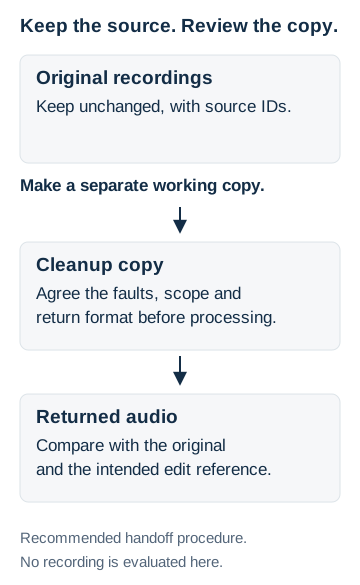
Keep the original outside the cleanup chain. This is a recommended handoff procedure, not an evaluated recording.
Source: Adobe clip and sequence exchange documentation. See Sources for the original documents.
Describe the problem before choosing a tool
Give the recipient a few exact locations and a listening goal: a steady fan behind narration, a microphone bump, a harsh consonant, an abrupt change between takes, or a clipped word. Include difficult and ordinary passages so the test does not represent only the easiest material.
Adobe's restoration documentation distinguishes steady noise, short clicks and other faults because they call for different treatment. Audacity's Noise Reduction documentation also warns that variable noise, loud interference and overlapping speech can prevent a satisfactory result.
If a noise-only portion exists, retain it with its surrounding context. A breath, a quiet syllable or a pause containing another speaker is not automatically a noise sample. In Audacity, the noise profile is intended to contain only the noise being reduced.
Ask for comparison against the original at a similar listening level. Listen for the wanted words, consonant endings, breathing and changes in voice character. Where the tool offers a removed-sound or residue preview, check whether recognizable speech is being discarded. Both Audacity's documentation and iZotope's voiceover demonstration use that check to judge processing damage.
Clean a video soundtrack and return it in sync
To reduce unwanted sound in an existing video, process a working audio copy and check the result back against the picture. Detaching audio lets you edit sound separately from picture; it does not separate voices, music and noise already mixed in that soundtrack.
- Duplicate the video project and retain its source media. Look for separate microphone recordings before working from the mixed soundtrack.
- Select the intended audio track or region and preserve its start position and duration. Test a representative difficult passage, including nearby speech and transitions.
- Choose treatment for the actual fault. For steady hiss with a noise-only sample, use the hiss-reduction procedure. A profile for steady noise is not an automatic repair for a horn or bark; a short event may need local treatment, and sound overlapping speech may remain unresolved.
- Compare wanted words and voice character with the source at a similar listening level. Reduce or undo the treatment if wanted detail deteriorates.
- Return the processed audio to only the intended track or region, retaining its timing. Check transitions and sync against the picture, then export a separately named video.
- Reopen the exported video in its intended player. Listen and check picture/audio alignment near the beginning, middle and end, including the repaired passages. Keep the project and original available if the export needs revision.
Agree the exchange and return files
Confirm what the recipient accepts before making an AAF, OMF or set of audio exports. Media Medic's file-review step does not establish that every production interchange format or deliverable is supported.
For an agreed WAV-track handoff, document each track's name, channel layout and start position. A common export start can make alignment easier, but check that the receiving editor imports the files as intended. Preserve the sample rate and bit depth unless an agreed conversion is part of the workflow.
An AAF can carry digital media and metadata between applications. Adobe's current Premiere documentation offers full audio files or trimmed media with handles, embedded or separate audio, and options for rendered effects and additional copies without effects. It also describes compatibility limits. Test a short exchange in the actual destination application before relying on the full export.
OMF is another possible exchange route when both sides agree. Adobe documents its Premiere-to-Pro Tools workflow separately; its presence in an export menu does not make it interchangeable with every other application's import support.
For picture-based work, include an identifiable reference video and state the sequence's frame rate, start timecode and edit version. Adobe documents synchronization using common timecode, a slate, markers or a selected audio channel. Confirm the resulting alignment rather than assuming the method proves it. Changing a clip's interpreted frame rate can change its duration and audio, so it needs a deliberate timing decision.
Keep enough audio around each edit
Handles are extra source audio before and after the part used in a timeline. They let an editor examine an edit boundary and work with nearby material instead of receiving only the exact cut.
Adobe's Premiere-to-Audition documentation gives a simple example: a ten-second clip with one-second handles becomes twelve seconds long. The extra second at each end is outside the selected ten seconds. It is not added to the edited programme's running time merely because it is included in the handoff.
Agree how much surrounding material is needed. The answer depends on the available source and the intended work. A longer pause, a transition or an alternative take may need more context than a short clip export contains. Handles cannot supply audio that was never recorded or was already trimmed from the available source.
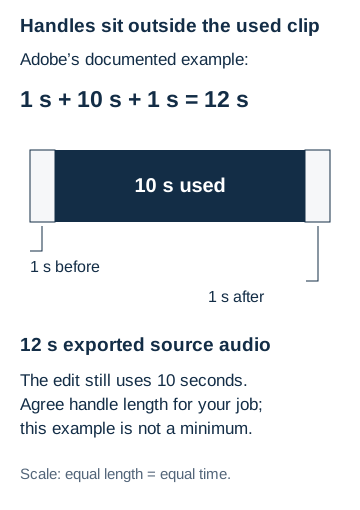
Adobe’s example exports 12 seconds of source for a 10-second selection with 1-second handles at each end. It does not extend the programme’s running time or set a minimum for every project.
Source: Adobe, Edit Premiere sequences in Adobe Audition. See Sources for the original documents.
A podcast handoff can stay simple
For an audio-only interview, keep the host and guest recordings separate when they were captured separately. Add the edit reference and a note showing where both sources begin. Identify existing edits, missing sections and any recording-platform processing you know about.
Keep music and other added elements separate when possible. That allows the cleaned dialogue to be judged both on its own and in the intended episode. A processor designed to isolate speech may also remove wanted non-speech sound; check the chosen method against the actual material.
Agree whether the return is cleaned source audio, edited dialogue or a finished mix. Those are different deliverables. Discuss editorial cuts, music, mixing and mastering separately from source cleanup. Cleanup does not itself include removing every pause, changing the conversation, generating replacement words or meeting a distribution platform's delivery specification.
There is no universal instruction to normalize every file at the same stage. For example, Audacity's Noise Reduction documentation allows amplification or normalization before or after that effect. Follow the chosen workflow and assess the result instead of copying one chain of settings into every episode.
Documentary sound needs a clear origin
For a factual scene, identify which tracks were recorded at the event, which came from an archive and which were added during production. Keep source references and an edit record with the working project. Restoration, editorial rearrangement, a newly recorded voice and a constructed effect make different contributions to the finished account.
The BBC's Accuracy guidelines provide a useful editorial example. They permit production techniques that improve clarity and flow while prohibiting materially misleading impressions. They also address synthetic material, identifiable reconstructions and archive context. These are BBC editorial standards, rather than a universal legal test for every documentary.
Apply the distinction to the handoff: say whether a request concerns reducing recorded noise or adding a sound that the source does not contain. A fabricated word or a substituted sound should not be presented as something the original recording established. Discuss material alterations and the needed disclosure with the production's responsible editor.
For an archive recording, retain the source identifier and the context provided with it. The guide to preserving audio and video evidence explains source handling; the guide to audio enhancement, transcription and authentication explains why a clearer listening copy does not answer every question about a recording.
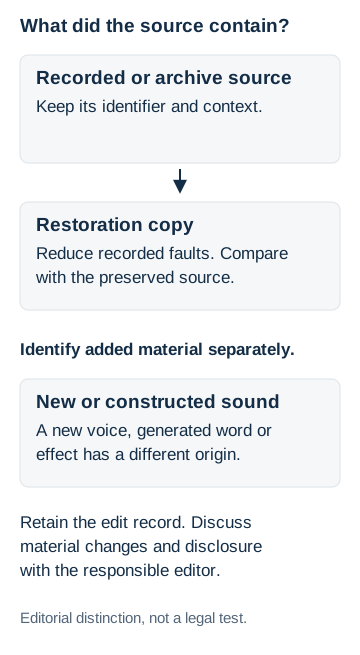
Identify recorded source and newly added sound separately. A restored listening copy does not establish the origin of added material.
Source: BBC Accuracy guidelines; Adobe’s separate-copy editing workflow. This is an editorial distinction, not a universal legal test. See Sources for the original documents.
Check the return in the actual production
Import the returned files into a duplicate of the intended project. Verify the track names, channel assignments, start positions and total durations against the agreed handoff. Check synchronization at the beginning, middle and end, and around affected edits. A matching start alone will not reveal a mismatch later in the programme.
Listen to the processed passages beside the source, then in the surrounding scene or episode. Check quiet words as well as louder phrases. Watch for missing consonants, pumping room sound, watery or metallic voice texture, clipped transitions, and new changes where a processing batch crossed into another recording condition.
Keep the approved result and the original separately. Record what was returned and any passages that remain limited or unclear. If a repair makes an important word less reliable, revise that passage rather than approving the whole file because most of it sounds cleaner.
Methodology and limits
This guide compares Adobe's documented media-exchange and synchronization workflows, Audacity's noise-reduction and format guidance, an iZotope voiceover demonstration and the BBC's accuracy standards. The handoff and review procedure is an editorial synthesis of those sources, not a test of a particular recording or a measured Media Medic result.
Software examples describe their named applications. They do not establish compatibility with another recipient's system. The iZotope demonstration uses RX 9 and supports the illustrated comparison method, rather than a claim about the current version's performance. Recovery and delivery requirements still depend on the actual files and agreed scope.
Put the listening goal in the handoff
Keep the source, explain the problem and agree how the repaired copy will fit back into the project. Then review the voice and timing in context before approving the return. If you need help assessing an existing dialogue recording, request a file review and describe the source, difficult passages and intended use.
Frequently asked questions
Can I send only a video with the sound already mixed?
Describe what you have and keep that file unchanged. Ask whether separate source audio still exists before exporting another copy. If dialogue, music and other sounds are already combined, say so; the same independent-track adjustments may no longer be available.
Do I have to make an AAF?
No. Agree the exchange with the recipient first. An individual recording or an agreed set of WAV exports may fit the job. Use AAF or OMF only when the receiving workflow supports the chosen settings, and verify a test import.
Is one second the correct handle length?
It is the value in Adobe's documented example, not a universal requirement. Agree enough surrounding material for the work and check that the source actually contains it.
Should I remove every breath and silence?
Decide which sounds interfere with the intended use. A natural breath, room ambience or pause may belong to the performance or context. Compare the result with the original instead of defining success as complete silence between words.
Does a louder return mean the cleanup worked?
A level change can make comparison misleading. Compare at similar listening levels and judge the wanted words, voice character and timing. A quieter background is useful only when the important recording still survives the treatment.
Does cleanup make a file broadcast-ready?
Agree that deliverable separately. Repairing a source track does not establish compliance with a broadcaster's loudness, channel, packaging or other delivery requirements, and it does not replace the production's final quality check.
Sources
- Adobe. (2026, January 7). Change the frame rate of a clip. Adobe Premiere Help. https://helpx.adobe.com/premiere/desktop/edit-projects/modify-clip-properties/change-the-frame-rate-of-a-clip.html
- Adobe. (2026, August 18). Edit Premiere audio clips in Audition. Adobe Premiere Help. https://helpx.adobe.com/premiere/desktop/use-premiere-with-other-apps/working-with-other-adobe-applications/edit-premiere-audio-clips-in-audition.html
- Adobe. (2026, August 18). Edit Premiere sequences in Adobe Audition. Adobe Premiere Help. https://helpx.adobe.com/premiere/desktop/use-premiere-with-other-apps/working-with-other-adobe-applications/edit-premiere-sequences-in-audition.html
- Adobe. (2026, August 18). Export AAF files. Adobe Premiere Help. https://helpx.adobe.com/premiere/desktop/render-and-export/export-files/export-aaf-files.html
- Adobe. (2026, August 18). Export OMF files for Pro Tools. Adobe Premiere Help. https://helpx.adobe.com/premiere/desktop/render-and-export/export-files/export-omf-files-for-pro-tools.html
- Adobe. (2026, January 21). Reduce noise and restore audio. Adobe Audition Help. https://helpx.adobe.com/audition/desktop/effects-reference/noise-reduction-restoration-effects.html
- Adobe. (2025, August 22). Synchronize clips in the Timeline panel. Adobe Premiere Help. https://helpx.adobe.com/premiere/desktop/add-audio-effects/basic-audio-editing/synchronize-clips-in-the-timeline-panel.html
- Audacity. (n.d.). MP3 export options. Audacity Development Manual. https://manual.audacityteam.org/man/mp3_export_options.html
- Audacity. (n.d.). Noise reduction. Audacity Development Manual. https://manual.audacityteam.org/man/noise_reduction.html
- BBC. (n.d.). Section 3: Accuracy – Guidelines. BBC Editorial Guidelines. https://www.bbc.com/editorialguidelines/guidelines/accuracy/guidelines
- iZotope, Inc. (n.d.). How to clean up voice recordings for videos and podcasts | iZotope RX. YouTube. https://www.youtube.com/watch?v=CFvGPBE22yM