
Video restoration guide
Enhance security camera footage
Keep the original, choose adjustments for the problem and check whether the detail actually becomes more useful.
The short answer
Key takeaways
- Preserve the most original export and process a separate working copy.
- Match the adjustment to the problem, then compare the same frames.
- A clearer-looking face or plate is not automatically a reliable identification.
To enhance security camera footage, keep the most original export, work on a copy and choose adjustments for the detail you need to review. Brightness, contrast, noise reduction and correct playback may help. Missing recorded information can still leave the answer unclear.
If you are reviewing footage for a case, identify the moment and question first. This guide helps you choose a careful software workflow and judge whether it made that detail more useful. You can also request a free file review before deciding on restoration work.
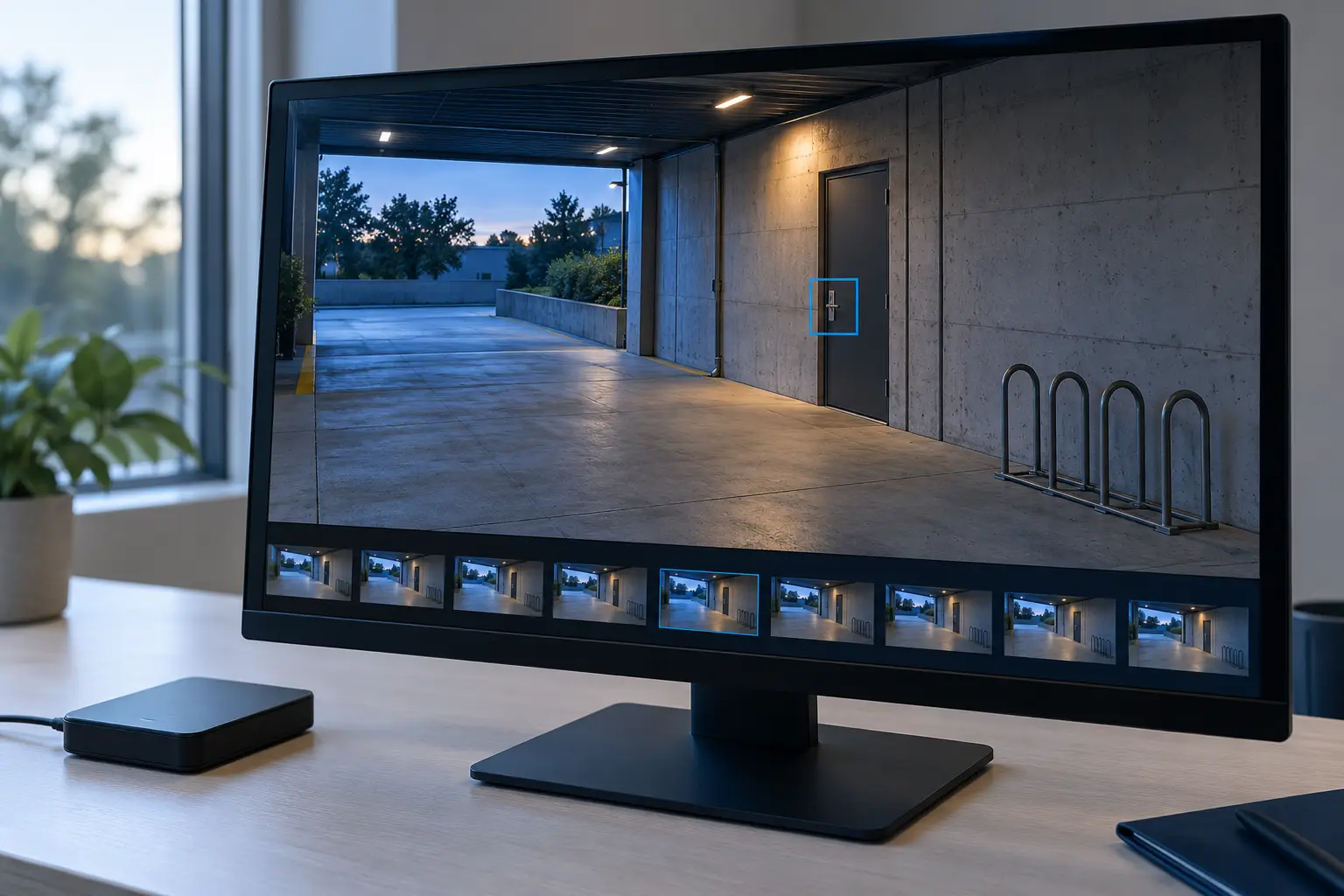
What can enhancement improve?
Software can make recorded details easier to see by adjusting brightness and contrast, reducing noise or correcting how a file is displayed. It can help you follow an action or examine an object. The possible improvement depends on the information in the recording.
Start with one question: do you need to follow a person's movement, examine an object near a doorway or read a vehicle's plate? A useful adjustment for one task may do little for another. Making a dark vehicle's outline easier to follow does not necessarily make its plate readable.
Look at the sequence as well as the most promising still. Another frame may show the object at a better angle or with less motion blur. Keep the surrounding event available so a close crop does not become your only view of what happened.
What should you save first?
Save the most original export you can obtain from the recorder or storage service, keep it unchanged and make a separate working copy. A screenshot, messaging-app clip or phone recording of a monitor gives you less to examine than the original video may contain.
- Keep the original export and its player. If the recorder supplies a proprietary player or extra files, retain them together. Check that the export opens and includes the relevant period.
- Keep the wider event. Note the camera or channel, filename, time interval and area of interest. Retain footage before and after the moment, alongside any short reference clip.
- Separate each version. Keep the original, working copy and earlier processed versions clearly named. Record any conversion or editing you know about; say when the file's earlier history is unknown.
- Record your work. Note the software, settings, order of adjustments and output filename. For casework, follow your organization's evidence procedures, including its integrity checks.
SWGDE's Best Practices for Digital Forensic Video Analysis, version 18-V-001-1.1, recommends a verified working copy and documented processing. Our guide to preserving audio and video evidence explains the file-care questions in more detail.
Keep the original outside the processing trials
An unchanged original export produces a working copy; separate trial files derive from that working copy.
Source: SWGDE 18-V-001-1.1, §§ 4.2–4.3
Why does the footage look unclear?
Unclear footage can come from motion, low light, compression, limited recorded resolution or incorrect playback. Those problems need different approaches. Check the file before treating every soft-looking picture as a sharpening problem.
| What you see | What to check or try | What to watch for |
|---|---|---|
| A dark or washed-out area | Try controlled brightness, levels or contrast changes. | Raising brightness may also reveal noise. A fully clipped bright area may contain no usable detail. |
| Grain that changes between frames | Test modest noise reduction; suitable sequences may support frame averaging. | Heavy smoothing can remove small features along with noise. |
| A moving object looks smeared | Inspect nearby frames and consider a suitable deblurring method. | Sharpening alone can make blur edges harsher without resolving the object. |
| Blocks, ringing or breakup | Check for a better original export and review compression artifacts. | Repeated compressed exports can compound the problem. |
| A face or plate occupies very few pixels | Look for a closer or clearer frame, another camera or a more original file. | Enlargement increases display size; it does not establish missing identifiers. |
| Stretched shapes or unexpected speed | Check the player, aspect ratio and timing information before processing. | A playback error can affect your interpretation of shape or movement. |
In file properties or suitable inspection software, look for resolution, frame rate, codec and aspect ratio. Record what you can establish and keep unknown values unknown. A file extension such as MP4 does not describe all of those characteristics.
Which software fits the job?
Choose software that opens your source correctly, gives you control over the needed adjustment and lets you keep a record of the work. A basic editor may be enough for a modest brightness or contrast test. Complex blur, proprietary formats and work requiring a documented examination may call for specialist tools and appropriate expertise.
General video editors and dedicated forensic packages serve different needs. The useful comparison is whether they support your file and task: accurate frame access, controlled filters, suitable export options and a way to reproduce the processing. A product's claim to make video sharper does not tell you whether it can resolve your particular detail.
- Check format and operating-system support in the tool's current documentation.
- Confirm that the picture's proportions and playback timing make sense before judging a small feature.
- Test a short working segment and keep the unchanged reference beside it.
- Check whether your intended use needs a record of settings, intermediate versions or a separate qualified examination.
If footage contains sensitive case material, establish how an online tool handles uploads before sending it. You can ask Media Medic about the actual sharing and handling arrangements before providing a recording.
How do you improve a working copy?
Start with correct playback, select the relevant sequence and test one adjustment at a time on a working copy. Keep a record so you can tell which change helped and undo a change that made the detail harder to assess.
- Confirm the source view. Open the original in an appropriate player. Resolve stretched proportions, missing channels or unexpected playback behavior before attempting enhancement.
- Select the moment and area. Identify the relevant time interval and a useful region of interest. Save a wider view as well as the close view.
- Adjust visibility. Test brightness, levels or contrast gently. Check both the important detail and nearby areas for lost highlights or shadows.
- Address the specific defect. Noise reduction, stabilization or a suitable deblurring method may help, depending on the recording. Keep each trial separate.
- Use sharpening cautiously. Check whether an edge becomes easier to interpret or merely gains a bright outline. Stronger is not automatically more useful.
- Compare, then save. Compare the same source frames with the trial, save a new output and reopen it to check the result. Stop when further changes add artifacts without answering the original question.
This is an order for a careful trial, rather than a universal set of filter values. SWGDE places file-structure and camera-related concerns before local processing of the area of interest. The recording determines which steps are appropriate.
Can several frames help?
Several suitable frames can sometimes make a recorded feature easier to see than one still. Frame averaging combines corresponding image information to reduce changing noise. The feature needs to align across the selected frames; movement and a changing view can complicate the result.
In The Video Forensics Guy's frame-averaging demonstration, the workflow selects a frame range, stabilizes the area and then averages it before adjusting contrast. The example also discusses blur from slight misalignment. It illustrates why the original sequence can matter more than a screenshot, without establishing what will work on another recording.
Do not copy a demonstration's frame count or filter strength as a general prescription. If combining frames doubles an edge or smears a moving feature, return to the source and reassess the selection.
Match the feature before combining frames
A schematic corner feature moves in the first stack and occupies matching positions in the aligned stack; averaging requires corresponding image information.
Can you clarify a face or plate?
Sometimes, if enough useful information is present in the source. Enhancement cannot guarantee a readable plate or an identifiable face. Very small features, severe blur, glare and heavy compression can leave the answer inconclusive.
Look for the best view across the sequence before choosing a still: the face may turn toward the camera, the vehicle may slow down or a different frame may have less glare. Another camera can supply a more useful view. Preserve those sources separately rather than treating one enhanced crop as the entire record.
Keep the description of the result precise. “The outline is easier to follow” and “these characters can be read” are different findings. If a mark could be more than one character, retain that uncertainty. Avoid repeatedly changing filters until the image resembles a plate or person you already expect.
For casework, clarification, comparison and interpretation are separate tasks in SWGDE's guidance. A more legible image alone does not establish identity or a legal conclusion.
Should you use an AI upscaler?
An AI upscaler may improve how a clip looks, but a sharper-looking output is not proof that every new detail was recorded. Be especially careful when a tool reconstructs faces or characters: a plausible feature can still be wrong.
Increasing the output dimensions gives you more output pixels. It does not, by itself, establish more information about the original event. Different enhancement models or settings may also produce different-looking edges. Compare them with the unchanged source and consider what the processing has actually added or altered.
Brightness and contrast adjustments change recorded pixel values; stabilization changes how frames align. Model-based reconstruction instead estimates an output using learned patterns. These operations need different explanations of what changed. Colorization of grayscale footage adds estimated colors: it does not establish the original color of clothing, a vehicle or another object. Keep a colorized interpretation separate and do not report its added color as a confirmed event detail.
If you try an upscaler, keep its output separately, record the tool and settings, and retain the full original sequence. Do not use a generated face or plate character as a confirmed identification merely because it looks convincing. If your task requires a defensible examination rather than a clearer viewing copy, establish that scope with an appropriately qualified examiner.
What if the security recording’s audio is unclear?
A security recording’s sound needs its own listening assessment. Picture adjustments do not make recorded speech clearer. Noise reduction can estimate and reduce unwanted sound, while level processing can control uneven loudness; neither establishes missing words or a speaker’s identity. Preserve the original audio with the footage and identify the difficult timestamps. Compare audio enhancement, transcription and authentication to choose whether you need clearer listening, written text or a question about the recording’s history addressed.
How do you check the result?
Compare the same moment and area in the original and processed versions, then judge the answer to your starting question. A larger crop or a more dramatic image can look better without making the important detail more reliable.
- Match the view. Compare the same frame or interval at a comparable display size. Keep the wider context available.
- Look for the useful change. Can you follow the action more easily, separate an object from its background or read a previously unclear feature consistently?
- Look for damage. Check for halos, doubled edges, smeared features, lost highlights or unexpected changes to timing and proportions.
- Check the saved file. Reopen the delivered output. Confirm the relevant sequence is present and the saved picture reflects the version you assessed.
- Keep the limits with the result. Record what improved and what remains unclear. Do not turn an uncertain detail into a definite statement.
Choose output settings for the intended use and avoid unnecessary lossy conversions. Keep the source and processing record even if you also need a smaller viewing copy for sharing.
Match the comparison before judging the change
The original and processed views are matched by moment, region and display size, then the saved output is reopened and checked.
Source: SWGDE 18-V-001-1.1, §§ 4.3,5
When is a file review useful?
A file review is useful when you cannot tell whether the detail is recoverable, the source does not play correctly or earlier processing has not produced a useful result. Start with the recording and the question you need answered.
Media Medic provides remote audio and video restoration and offers a free file review with a quote before work begins. Describe the footage, the moments that matter, what you have already tried and your deadline. Keep the original and any processed versions available, and ask about the sharing arrangements before sending sensitive material.
Normal turnaround is five days or less, and a paid 24-hour upgrade is available. Confirm the timing for your recording and deadline. Transcripts and authentication are paid additions with their scope agreed separately; restoration does not establish court admissibility.
Request a free file review and tell us which moment matters, or read about video cleanup before deciding.
More questions about CCTV footage
What if I only have a shared clip or screenshot?
Keep it unchanged and ask whether a more original export is available. A review can begin with the file you have, but a screenshot lacks the surrounding frames and a shared clip may have been recompressed. Explain where it came from and keep any earlier versions.
Will exporting at a higher resolution add detail?
A larger output can be easier to view, but its dimensions do not prove that additional detail was captured. Check the source resolution and compare the actual feature, rather than treating a 4K export label as evidence of recovery.
Can changing camera settings fix an existing recording?
Changing lighting, focus, lens cleanliness or recording settings can help future footage. Those changes do not alter a past event already stored in a file. Preserve and assess that existing recording separately.
Sources
Media Medic
Audio and video restoration for recordings that matter.